July 5, 2016

How to disable USB devices using Group Policy

In this post we will learn the steps to disable USB Ports Using Group Policy. USB( Universal Serial Bus) is most common use for each and every one. USB is Most common way to establish connection between Pc and USB. Use of USB you can connect Extra Hard disk, Printer, Pan drive,Scanner etc.

Most of case Laptop having 3 to 5 USB post and Desktop having 4 to 6 ports. but If you want increase USB post then you can use External USB hub.

For securing the network of the company, most organizations limit access to removable drives by disabling USB ports.Disable removable disk would prevent the threat of stealing confidential data or inject virus in the network therefore organizations disable USB ports.

In this post we will learn how to disable USB with help of Group Policy and also see how to assign read only permission to USB Drive and block execution of .exe files.

Let's start How to disable USB Devices using Group Policy.

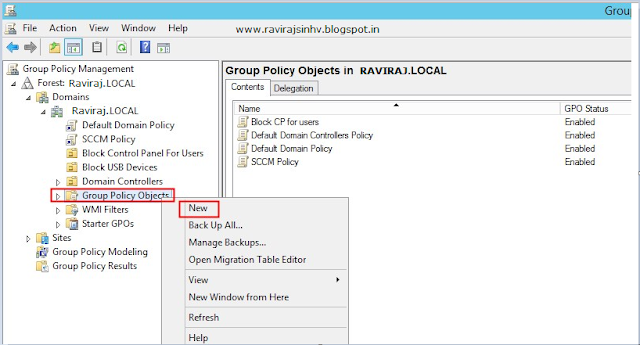
Step 1 :- Launch the Group Policy Management tool on the domain controller, right clickGroup Policy Objects, click New.Give name of GPO and Click On.Example i have assign name of GPO as Block USB Devices.


Step 2 :-Right-click the policy and click Edit. This will open the Group Policy Management Editor group. Go to Computer Configuration \ Policies \ Administrative Templates \ System \ Removable Storage Access. This is the place where the device configuration access toremovable storage. A lot of USB devices for multiple adjustments, however we will set up an environment All Removable Storage classes: Deny access.


Step 3:- 
Right click on the setting All Removable Storage classes: Deny access and clickEdit. If this policy is enabled then access to any kind of removable storage that is connected to the computer will be locked. Click Enabled and click Apply, then OK.

Step 4:- Do you still have to create a Group Policy object, the next step is to link the GPO to the OU container that contains the computer accounts and all USB devices will be blocked. Right-click the OU and click the link current GPO.


Step 5:-From the list select the USB policy GPO Block USB devices and click OK.

 
Step 6:- An upgrade of the group's policy on the client using the gpupdate / force command. Connect any USB device to your computer and you should see the message as access is denied. The policy applied users can not mount any kind of removable media. 

source: https://ravirajsinhv.blogspot.in/2016/06/how-to-disable-usb-devices-using-group.html

PowerShell: Pin and Unpin Applications to the Start Menu and Taskbar

am in the middle of building a new Windows 10 image and testing out all of the GPOs and applications. One of the settings we do is to add apps to the taskbar and start menu. I had written a script a couple of years ago to do this, but it was in a rush when I had just started this position. With the help of using Sapien's PowerShell studio, this script was a breeze to write. I didn't have time to really put much thought into the script. This time around, I have much more time to write the scripts.

The first thing is the old script does not work with Windows 10. I started to do a little research and found this person's script. I liked it and ended up taking some references from it, but as you have probably seen in some of my other scripts, I also like verification and adding more features. The first of the features I added is being able to generate an official list of all applications on the machine that are listed within the specified GUID. The reason for this feature is that you will need to add that application exactly like it appears in the generated list, otherwise it will not pin or unpin it. I also put a feature to allow the generated list to be exported to a csv file.

The next feature is being able to add all of the apps you want to be pinned or unpinned to a text file. The script will read the text file and process each app. One thing you will see I did was to put a unpin first within the pin functions. I did this so if there is an app already pinned and a possible change was made to the app affecting the pinned shortcut, an updated one will appear. I also put examples at the bottom on how to hardcode apps directly into the script if you do not want to use a text file.

The final feature was to use boolean variables to reflect on success or failure of each processed step. This allows the script to exit out with an error code 1, thereby flagging it as failed if implemented in SCCM/MDT.

Here is a screenshot on how to populate a the text file. As you can see in the script, I hardcoded 'Applications.txt' as the name of the file to contain the list of applications. It must be in the same directory as the powershell script. You can override the hardcoded filename by using the -AppsFile parameter. To unpin apps, change the add to remove in the list below.


You can download the script from here.


 <#  
      .SYNOPSIS  
           A brief description of the ApplicationShortcutsWindows10.ps1 file.  
        
      .DESCRIPTION  
           This script will add shortcuts to the taskbar.  
        
      .PARAMETER AppsFile  
           Name of the text file that contains a list of the applications to be added or removed  
        
      .PARAMETER ConsoleTitle  
           ConsoleTitle assigned to the PowerShell console  
        
      .PARAMETER OutputToTextFile  
           Select if output needs to go to a text file  
        
      .PARAMETER GetApplicationList  
           Get a list of applications with the specific name needed to use or pinning and unpinning  
        
      .EXAMPLE  
           Read apps from within a text file that resides in the same directory as this script  
                powershell.exe -executionpolicy bypass -file ApplicationShortcutsWin10.ps1 -AppsFile 'Applications.txt'  
   
           Get an official list of applications with the exact names that need to be used for pinning/unpinning  
                powershell.exe -executionpolicy bypass -file ApplicationShortcutsWin10.ps1 -GetApplicationList  
   
           Get an official list of applications with the exact names that need to be used for pinning/unpinning and write to the text file ApplicationList.csv residing in the same directory as this script  
                powershell.exe -executionpolicy bypass -file ApplicationShortcutsWin10.ps1 -GetApplicationList -OutputToTextFile  
   
           Near the bottom of the script are commented out lines that give examples of how to hardcode apps inside this script  
   
      .NOTES  
           ===========================================================================  
           Created with:     SAPIEN Technologies, Inc., PowerShell Studio 2016 v5.2.123  
           Created on:       6/29/2016 10:33 AM  
           Created by:       Mick Pletcher  
           Organization:  
           Filename:         ApplicationShortcutsWindows10.ps1  
           ===========================================================================  
 #>  
   
 [CmdletBinding()]  
 param  
 (  
           [string]$AppsFile = 'Applications.txt',  
           [ValidateNotNullOrEmpty()][string]$ConsoleTitle = 'Application Shortcuts',  
           [switch]$OutputToTextFile,  
           [switch]$GetApplicationList  
 )  
   
 function Add-AppToStartMenu {  
 <#  
      .SYNOPSIS  
           Pins an application to the start menu  
        
      .DESCRIPTION  
           Add an application to the start menu  
        
      .PARAMETER Application  
           Name of the application. This can be left blank and the function will use the file description metadata instead.  
        
      .NOTES  
           Additional information about the function.  
 #>  
        
      [CmdletBinding()][OutputType([boolean])]  
      param  
      (  
                [Parameter(Mandatory = $true)][string]$Application  
      )  
        
      $Success = $true  
      $Status = Remove-AppFromStartMenu -Application $Application  
      If ($Status -eq $false) {  
           $Success = $false  
      }  
      Write-Host 'Pinning'$Application' to start menu.....' -NoNewline  
      ((New-Object -Com Shell.Application).NameSpace('shell:::{4234d49b-0245-4df3-b780-3893943456e1}').Items() | Where-Object{ $_.Name -eq $Application }).verbs() | Where-Object{ $_.Name.replace('&', '') -match 'Pin to Start' } | ForEach-Object{ $_.DoIt() }  
      If ($? -eq $true) {  
           Write-Host 'Success' -ForegroundColor Yellow  
      } else {  
           Write-Host 'Failed' -ForegroundColor Red  
           $Success = $false  
      }  
      Return $Success  
 }  
   
 function Add-AppToTaskbar {  
 <#  
      .SYNOPSIS  
           Pins an application to the taskbar  
        
      .DESCRIPTION  
           Add an application to the taskbar  
        
      .PARAMETER Application  
           Name of the application. This can be left blank and the function will use the file description metadata instead.  
        
      .NOTES  
           Additional information about the function.  
 #>  
        
      [CmdletBinding()][OutputType([boolean])]  
      param  
      (  
                [Parameter(Mandatory = $true)][string]$Application  
      )  
        
      $Success = $true  
      $Status = Remove-AppFromTaskbar -Application $Application  
      If ($Status -eq $false) {  
           $Success = $false  
      }  
      Write-Host 'Pinning'$Application' to start menu.....' -NoNewline  
      ((New-Object -Com Shell.Application).NameSpace('shell:::{4234d49b-0245-4df3-b780-3893943456e1}').Items() | Where-Object{ $_.Name -eq $Application }).verbs() | Where-Object{ $_.Name.replace('&', '') -match 'Pin to taskbar' } | ForEach-Object{ $_.DoIt() }  
      If ($? -eq $true) {  
           Write-Host 'Success' -ForegroundColor Yellow  
      } else {  
           Write-Host 'Failed' -ForegroundColor Red  
           $Success = $false  
      }  
      Return $Success  
 }  
   
 function Get-ApplicationList {  
 <#  
      .SYNOPSIS  
           Get list of Applications  
        
      .DESCRIPTION  
           Get a list of available applications with the precise name to use when pinning or unpinning to the taskbar and/or start menu  
        
      .PARAMETER SaveOutput  
           Save output to a text file  
        
      .EXAMPLE  
           PS C:\> Get-ApplicationList  
        
      .NOTES  
           Additional information about the function.  
 #>  
        
      [CmdletBinding()]  
      param  
      (  
                [switch]$SaveOutput  
      )  
        
      $RelativePath = Get-RelativePath  
      $OutputFile = $RelativePath + "ApplicationList.csv"  
      $Applications = (New-Object -Com Shell.Application).NameSpace('shell:::{4234d49b-0245-4df3-b780-3893943456e1}').Items()  
      $Applications = $Applications | Sort-Object -Property name -Unique  
      If ($SaveOutput.IsPresent) {  
           If ((Test-Path -Path $OutputFile) -eq $true) {  
                Remove-Item -Path $OutputFile -Force  
           }  
           "Applications" | Out-File -FilePath $OutputFile -Encoding UTF8 -Force  
           $Applications.Name | Out-File -FilePath $OutputFile -Encoding UTF8 -Append -Force  
      }  
      $Applications.Name  
 }  
   
 function Get-Applications {  
 <#  
      .SYNOPSIS  
           Get Application List  
        
      .DESCRIPTION  
           Get the list of applications to add or remove  
        
      .EXAMPLE  
           PS C:\> Get-Applications  
        
      .NOTES  
           Additional information about the function.  
 #>  
        
      [CmdletBinding()][OutputType([object])]  
      param ()  
        
      $RelativePath = Get-RelativePath  
      $File = $RelativePath + $AppsFile  
      $Contents = Get-Content -Path $File -Force  
      Return $Contents  
 }  
   
 function Get-RelativePath {  
 <#  
      .SYNOPSIS  
           Get the relative path  
        
      .DESCRIPTION  
           Returns the location of the currently running PowerShell script  
        
      .NOTES  
           Additional information about the function.  
 #>  
        
      [CmdletBinding()][OutputType([string])]  
      param ()  
        
      $Path = (split-path $SCRIPT:MyInvocation.MyCommand.Path -parent) + "\"  
      Return $Path  
 }  
   
 function Invoke-PinActions {  
 <#  
      .SYNOPSIS  
           Process the application list  
        
      .DESCRIPTION  
           Add or remove applications within the text file to/from the taskbar and start menu.  
        
      .PARAMETER AppList  
           List of applications  
        
      .EXAMPLE  
           PS C:\> Invoke-PinActions -AppList 'Value1'  
        
      .NOTES  
           Additional information about the function.  
 #>  
        
      [CmdletBinding()][OutputType([boolean])]  
      param  
      (  
                [Parameter(Mandatory = $false)][ValidateNotNullOrEmpty()][object]$AppList  
      )  
        
      $Success = $true  
      foreach ($App in $AppList) {  
           $Entry = $App.Split(',')  
           If ($Entry[1] -eq 'startmenu') {  
                If ($Entry[2] -eq 'add') {  
                     $Status = Add-AppToStartMenu -Application $Entry[0]  
                     If ($Status -eq $false) {  
                          $Success = $false  
                     }  
                } elseif ($Entry[2] -eq 'remove') {  
                     $Status = Remove-AppFromStartMenu -Application $Entry[0]  
                     If ($Status -eq $false) {  
                          $Success = $false  
                     }  
                } else {  
                     Write-Host $Entry[0]" was entered incorrectly"  
                }  
           } elseif ($Entry[1] -eq 'taskbar') {  
                If ($Entry[2] -eq 'add') {  
                     $Status = Add-AppToTaskbar -Application $Entry[0]  
                     If ($Status -eq $false) {  
                          $Success = $false  
                     }  
                } elseif ($Entry[2] -eq 'remove') {  
                     $Status = Remove-AppFromTaskbar -Application $Entry[0]  
                     If ($Status -eq $false) {  
                          $Success = $false  
                     }  
                } else {  
                     Write-Host $Entry[0]" was entered incorrectly"  
                }  
           }  
      }  
      Return $Success  
 }  
   
 function Remove-AppFromStartMenu {  
 <#  
      .SYNOPSIS  
           Remove the pinned application from the start menu  
        
      .DESCRIPTION  
           A detailed description of the Remove-AppFromStartMenu function.  
        
      .PARAMETER Application  
           Name of the application. This can be left blank and the function will use the file description metadata instead.  
        
      .NOTES  
           Additional information about the function.  
 #>  
        
      [CmdletBinding()][OutputType([boolean])]  
      param  
      (  
                [Parameter(Mandatory = $true)][string]$Application  
      )  
        
      $Success = $true  
      Write-Host 'Unpinning'$Application' from start menu.....' -NoNewline  
      ((New-Object -Com Shell.Application).NameSpace('shell:::{4234d49b-0245-4df3-b780-3893943456e1}').Items() | Where-Object{ $_.Name -eq $Application }).verbs() | Where-Object{ $_.Name.replace('&', '') -match 'Unpin from Start' } | ForEach-Object{ $_.DoIt() }  
      If ($? -eq $true) {  
           Write-Host 'Success' -ForegroundColor Yellow  
      } else {  
           Write-Host 'Failed' -ForegroundColor Red  
           $Success = $false  
      }  
      Return $Success  
 }  
   
 function Remove-AppFromTaskbar {  
 <#  
      .SYNOPSIS  
           Unpins an application to the taskbar  
        
      .DESCRIPTION  
           Remove the pinned application from the taskbar  
        
      .PARAMETER Application  
           Name of the application. This can be left blank and the function will use the file description metadata instead.  
        
      .NOTES  
           Additional information about the function.  
 #>  
        
      [CmdletBinding()][OutputType([boolean])]  
      param  
      (  
                [Parameter(Mandatory = $true)][string]$Application  
      )  
        
      $Success = $true  
      Write-Host 'Unpinning'$Application' from task bar.....' -NoNewline  
      ((New-Object -Com Shell.Application).NameSpace('shell:::{4234d49b-0245-4df3-b780-3893943456e1}').Items() | Where-Object{ $_.Name -eq $Application }).verbs() | Where-Object{ $_.Name.replace('&', '') -match 'Unpin from taskbar' } | ForEach-Object{ $_.DoIt() }  
      If ($? -eq $true) {  
           Write-Host 'Success' -ForegroundColor Yellow  
      } else {  
           Write-Host 'Failed' -ForegroundColor Red  
           $Success = $false  
      }  
      Return $Success  
 }  
   
 function Set-ConsoleTitle {  
 <#  
      .SYNOPSIS  
           Console Title  
        
      .DESCRIPTION  
           Sets the title of the PowerShell Console  
        
      .PARAMETER Title  
           Title of the PowerShell Console  
        
      .NOTES  
           Additional information about the function.  
 #>  
        
      [CmdletBinding()]  
      param  
      (  
                [Parameter(Mandatory = $true)][String]$Title  
      )  
        
      $host.ui.RawUI.WindowTitle = $Title  
 }  
   
 Clear-Host  
 $Success = $true  
 Set-ConsoleTitle -Title $ConsoleTitle  
 If ($GetApplicationList.IsPresent) {  
      If ($OutputToTextFile.IsPresent) {  
           Get-ApplicationList -SaveOutput  
      } else {  
           Get-ApplicationList  
      }  
 }  
 If (($AppsFile -ne $null) -or ($AppsFile -ne "")) {  
      $ApplicationList = Get-Applications  
      $Success = Invoke-PinActions -AppList $ApplicationList  
 }  
   
 #Hardcoded applications  
 <#  
 $Success = Add-AppToStartMenu -Application 'Microsoft Outlook 2010'  
 $Success = Add-AppToTaskbar -Application 'Microsoft Outlook 2010'  
 #>  
   
 If ($Success -eq $false) {  
      Exit 1  
 }  
   
Nguồn: http://mickitblog.blogspot.com/2016/07/powershell-pin-and-unpin-applications.html

June 30, 2016

How to set up automatic backups Cpanel

Using the script provided below you will be able to make automatic full cPanel backups of your account.
This backup script includes SSL support. This is not necessary if you run the script on the server for which you are generating the backup; but the SSL support could be important if you are running the script somewhere else to connect to your cPanel hosting account.


<?php
// PHP script to allow periodic cPanel backups automatically, optionally to a remote FTP server. 
// This script contains passwords. It is important to keep access to this file secure (we would ask you to place it in your home directory, not public_html) 
// You need create 'backups' folder in your home directory ( or any other folder that you would like to store your backups in ). 
// ********* THE FOLLOWING ITEMS NEED TO BE CONFIGURED ********* 
// Information required for cPanel access 
$cpuser = "username"; // Username used to login to cPanel 
$cppass = "password"; // Password used to login to cPanel. NB! you could face some issues with the "$#&/" chars in the password, so if script does not work, please try to change the password. 
$domain = "example.com";// Your main domain name 
$skin = "x"; // Set to cPanel skin you use (script will not work if it does not match). Most people run the default "x" theme or "x3" theme 
// Information required for FTP host 
$ftpuser = "ftpusername"; // Username for FTP account 
$ftppass = 'ftppassword'; // Password for FTP account NB! you could face some issues with the "$#&/" chars in the password, so if script does not work, please try to change the password.$ftphost = "ip_address"; // IP address of your hosting account 
$ftpmode = "passiveftp"; // FTP mode 
// Notification information $notifyemail = "any@example.com"; // Email address to send results  
// Secure or non-secure mode $secure = 0; // Set to 1 for SSL (requires SSL support), otherwise will use standard HTTP 
// Set to 1 to have web page result appear in your cron log $debug = 0; 
// *********** NO CONFIGURATION ITEMS BELOW THIS LINE ********* 
$ftpport = "21"; 
$ftpdir = "/backups/"; // Directory where backups stored (make it in your /home/ directory). Or you can change 'backups' to the name of any other folder created for the backups; 
if ($secure) { 
$url = "ssl://".$domain; 
$port = 2083; 
} else { 
$url = $domain; 
$port = 2082; 

$socket = fsockopen($url,$port); 
if (!$socket) { echo "Failed to open socket connection... Bailing out!n"; exit; } 
// Encode authentication string 
$authstr = $cpuser.":".$cppass; 
$pass = base64_encode($authstr); 
$params = "dest=$ftpmode&email=$notifyemail&server=$ftphost&user=$ftpuser&pass=$ftppass&port=$ftpport&rdir=$ftpdir&submit=Generate Backup"; 
// Make POST to cPanel 
fputs($socket,"POST /frontend/".$skin."/backup/dofullbackup.html?".$params." HTTP/1.0\r\n"); 
fputs($socket,"Host: $domain\r\n"); 
fputs($socket,"Authorization: Basic $pass\r\n"); 
fputs($socket,"Connection: Close\r\n"); 
fputs($socket,"\r\n"); 
// Grab response even if we do not do anything with it. 
while (!feof($socket)) { 
$response = fgets($socket,4096); if ($debug) echo $response; 

fclose($socket); 
?> 


   To schedule the script to run regularly, save it as fullbackup.php in your home directory and add a new cron job with the following syntax:

00 2 * * 1 /usr/local/bin/php /home/youraccount/fullbackup.php 
(Runs every Sunday night at 2:00 a.m.)

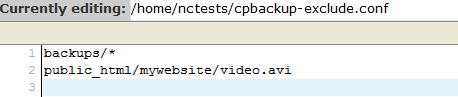
NOTE 1: In order to exclude the backups folder from automatic backup generation (if your account is a couple GBs big, disk space usage will increase drastically, as every new backup will contain all the former ones), look for the cpbackup-exclude.conf file in the home directory, add the folder name and use an asterisk * after the directory if you want to exclude all the files from a directory, or add the path to the file you wish to exclude from backups then and save the changes:


NOTE 2: If your account is hosted on a shared server, make sure your script usage is optimized in order not to overload the server.

NOTE 3: We do not provide code debugging services. This script is provided as a matter of courtesy for your convenience only.
or using tool : http://shink.in/pa4V7
Source: https://www.namecheap.com/support/knowledgebase/article.aspx/915

June 24, 2016

Rsync – Công cụ đồng bộ dữ liệu hiệu quả

Rsync (Remote Sync) là một công cụ dùng để sao chép và đồng bộ file/thư mục được dùng rất phổ biến. Với sự trợ giúp của rsync, bạn có thể đồng bộ dữ liệu trên local hoặc giữa các server với nhau một cách dễ dàng.
rsync

I. Tính năng nổi bật của Rsync

  • Rsync hỗ trợ copy giữ nguyên thông số của files/folder như Symbolic links, Permissions, TimeStamp, Owner và Group.
  • Rsync nhanh hơn scp vì Rsync sử dụng giao thức remote-update, chỉ transfer những dữ liệu thay đổi mà thôi.
  • Rsync tiết kiệm băng thông do sử dụng phương pháp nén và giải nén khi transfer.
  • Rsync không yêu cầu quyền super-user.

II. Cài đặt Rsync

Rsync được cài đặt dễ dàng với một dòng lệnh:
– Trên Red Hat/CentOS
yum install rsync
– Trên Debian/Ubuntu
apt-get install rsysnc

III. Sử dụng Rsync

Câu lệnh căn bản của rsync:
rsync options source destination
Trong đó:
  • Source: dữ liệu nguồn
  • Destination: dữ liệu đích
  • Options: một số tùy chọn thêm
Các tham số cần biết khi dùng Rsync
  • -v: hiển thị trạng thái kết quả
  • -r: copy dữ liệu recursively, nhưng không đảm bảo thông số của file và thư mục
  • -a: cho phép copy dữ liệu recursively, đồng thời giữ nguyên được tất cả các thông số của thư mục và file
  • -z: nén dữ liệu khi transfer, tiết kiệm băng thông tuy nhiên tốn thêm một chút thời gian
  • -h: human-readable, output kết quả dễ đọc
  • --delete: xóa dữ liệu ở destination nếu source không tồn tại dữ liệu đó.
  • --exclude: loại trừ ra những dữ liệu không muốn truyền đi, nếu bạn cần loại ra nhiều file hoặc folder ở nhiều đường dẫn khác nhau thì mỗi cái bạn phải thêm --excludetương ứng.
Rsync không tự động chạy nên thường được dùng kết hợp với crontab. Tiếp theo mình sẽ giới thiệu một số ví dụ thường dùng với Rsync và kết thúc bài là script mình dùng để tự động backup toàn bộ VPS hàng ngày.
Khi lần đầu chạy rsync, toàn bộ dữ liệu nguồn sẽ được copy đến server đích, từ lần chạy sau trở đi chỉ những dữ liệu chưa được copy mới được transfer – đây là quá trình đồng bộ dữ liệu. Do đó, bạn có thể hiểu rsync thực hiện việc copy hoặc đồng bộ đều đúng. Trong bài viết mình sẽ sử dụng duy nhất khái niệm Copy cho ngắn gọn nhé.

1. Copy file và thư mục trên local

Copy file trên local
[root@hocvps]# rsync -zvh backup.tar /tmp/backups/

created directory /tmp/backups

backup.tar

sent 14.71M bytes  received 31 bytes  3.27M bytes/sec

total size is 16.18M  speedup is 1.10
Ví dụ trên copy file backup.tar sang thư mục /tmp/backups/ trên cùng một máy. Như bạn thấy thư mục đích chưa có nên rsync tự động tạo trước khi copy.
Copy thư mục trên local
[root@hocvps]# rsync -avzh /root/rpmpkgs /tmp/backups/

sending incremental file list

rpmpkgs/

rpmpkgs/httpd-2.2.3-82.el5.centos.i386.rpm

rpmpkgs/mod_ssl-2.2.3-82.el5.centos.i386.rpm

rpmpkgs/nagios-3.5.0.tar.gz

rpmpkgs/nagios-plugins-1.4.16.tar.gz

sent 4.99M bytes  received 92 bytes  3.33M bytes/sec

total size is 4.99M  speedup is 1.00
Câu lệnh trên copy toàn bộ file từ thư mục /root/rpmpkgs đến thư mục /tmp/backups/ trên cùng một máy.

2. Copy file và thư mục giữa các server

Copy thư mục từ Local lên Remote Server
[root@hocvps]# rsync -avz rpmpkgs/ root@192.168.0.101:/home/

root@192.168.0.101's password:

sending incremental file list

./

httpd-2.2.3-82.el5.centos.i386.rpm

mod_ssl-2.2.3-82.el5.centos.i386.rpm

nagios-3.5.0.tar.gz

nagios-plugins-1.4.16.tar.gz

sent 4993369 bytes  received 91 bytes  399476.80 bytes/sec

total size is 4991313  speedup is 1.00
Lệnh trên copy thư mục rpmpkgs từ Local lên Remote Server có IP 192.168.0.101, lưu ở thư mục/home/
Copy thư mục từ Remote Server về Local
[root@hocvps]# rsync -avzh root@192.168.0.100:/home/tarunika/rpmpkgs /tmp/myrpms

root@192.168.0.100's password:

receiving incremental file list

created directory /tmp/myrpms

rpmpkgs/

rpmpkgs/httpd-2.2.3-82.el5.centos.i386.rpm

rpmpkgs/mod_ssl-2.2.3-82.el5.centos.i386.rpm

rpmpkgs/nagios-3.5.0.tar.gz

rpmpkgs/nagios-plugins-1.4.16.tar.gz

sent 91 bytes  received 4.99M bytes  322.16K bytes/sec

total size is 4.99M  speedup is 1.00
Lệnh trên sẽ copy dữ liệu ở thư mục /home/tarunika/rpmpkgs trên Remote Server 192.168.0.100về máy Local lưu ở thư mục /tmp/myrpms

3. Rsync qua SSH

Với Rsync, bạn có thể transfer qua giao thức SSH, qua đó dữ liệu được bảo mật an toàn hơn.
Copy file từ Remote Server về Local Server qua SSH
Để xác định giao thức sẽ sử dụng với rsync, bạn cần thêm tùy chọn -e cùng với tên giao thức, ở đây là ssh.
[root@hocvps]# rsync -avzhe ssh root@192.168.0.100:/root/install.log /tmp/

root@192.168.0.100's password:

receiving incremental file list

install.log

sent 30 bytes  received 8.12K bytes  1.48K bytes/sec

total size is 30.74K  speedup is 3.77
Lệnh trên copy file /root/install.log trên Remote Server 192.168.0.100 về thư mục /tmp/ trên máy Local.
Copy file từ Local lên Remote Server qua SSH
[root@hocvps]# rsync -avzhe ssh backup.tar root@192.168.0.100:/backups/

root@192.168.0.100's password:

sending incremental file list

backup.tar

sent 14.71M bytes  received 31 bytes  1.28M bytes/sec

total size is 16.18M  speedup is 1.10

4. Hiển thị tiến trình trong khi transfer dữ liệu với rsync

Để hiển thị tiến độ transfer dữ liệu, bạn có thể sử dụng tùy chọn --progress
[root@hocvps]# rsync -avzhe ssh --progress /home/rpmpkgs root@192.168.0.100:/root/rpmpkgs

root@192.168.0.100's password:

sending incremental file list

created directory /root/rpmpkgs

rpmpkgs/

rpmpkgs/httpd-2.2.3-82.el5.centos.i386.rpm

           1.02M 100%        2.72MB/s        0:00:00 (xfer#1, to-check=3/5)

rpmpkgs/mod_ssl-2.2.3-82.el5.centos.i386.rpm

          99.04K 100%  241.19kB/s        0:00:00 (xfer#2, to-check=2/5)

rpmpkgs/nagios-3.5.0.tar.gz

           1.79M 100%        1.56MB/s        0:00:01 (xfer#3, to-check=1/5)

rpmpkgs/nagios-plugins-1.4.16.tar.gz

           2.09M 100%        1.47MB/s        0:00:01 (xfer#4, to-check=0/5)

sent 4.99M bytes  received 92 bytes  475.56K bytes/sec

total size is 4.99M  speedup is 1.00

5. Sử dụng tùy chọn –include và –exclude

Hai tùy chọn này cho phép chúng ta thêm hoặc bớt file hoặc thư mục trong quá trình đồng bộ dữ liệu.
[root@hocvps]# rsync -avze ssh --include 'R*' --exclude '*' root@192.168.0.101:/var/lib/rpm/ /root/rpm

root@192.168.0.101's password:

receiving incremental file list

created directory /root/rpm

./

Requirename

Requireversion

sent 67 bytes  received 167289 bytes  7438.04 bytes/sec

total size is 434176  speedup is 2.59
Ở ví dụ trên, Rsync include toàn bộ những file hoặc thư mục có tên bắt đầu bởi ký tự ‘R’ và exclude toàn bộ những file hoặc thư mục còn lại.

6. Sử dụng tùy chọn –delete

Nếu muốn xóa một file hoặc thư mục không có ở thư mục nguồn, mà lại xuất hiện ở thư mục đích trong quá trình transfer, bạn hãy sử dụng tùy chọn --delete.
[root@hocvps]#  touch test.txt
[root@hocvps]# rsync -avz --delete root@192.168.0.100:/var/lib/rpm/ .
Password:
receiving file list ... done
deleting test.txt
./
sent 26 bytes  received 390 bytes  48.94 bytes/sec
total size is 45305958  speedup is 108908.55
Server đích đã có file test.txt, trong quá trình đồng bộ với option --delete, file sẽ bị xóa.

7. Giới hạn dung lượng tối đa của file được đồng bộ

Để giới hạn những file lớn được đồng bộ, bạn có thể sử dụng option --max-size
[root@hocvps]# rsync -avzhe ssh --max-size='200k' /var/lib/rpm/ root@192.168.0.100:/root/tmprpm

root@192.168.0.100's password:

sending incremental file list

created directory /root/tmprpm

./

Conflictname

Group

Installtid

Name

Provideversion

Pubkeys

Requireversion

Sha1header

Sigmd5

Triggername

__db.001

sent 189.79K bytes  received 224 bytes  13.10K bytes/sec

total size is 38.08M  speedup is 200.43

8. Tự động xóa dữ liệu nguồn sau khi đồng bộ thành công

Để rsync tự động xóa dữ liệu sau khi đồng bộ lên server đích thành công, bạn có thể sử dụng lựa chọn --remove-source-files
[root@hocvps]# rsync --remove-source-files -zvh backup.tar /tmp/backups/

backup.tar

sent 14.71M bytes  received 31 bytes  4.20M bytes/sec

total size is 16.18M  speedup is 1.10

[root@hocvps]# ll backup.tar

ls: backup.tar: No such file or directory

9. Chạy thử nghiệm Rsync

Nếu bạn không chắc câu lệnh có thực hiện chính xác những gì mong muốn hay không, hãy thêm tùy chọn --dry-run.
Rsync lúc này sẽ không thay đổi gì dữ liệu cả mà chỉ show output mà thôi. Nếu mọi thứ hoạt động ổn, hãy bỏ tùy chọn --dry-run ra khỏi câu lệnh.
root@hocvps]# rsync --dry-run --remove-source-files -zvh backup.tar /tmp/backups/

backup.tar

sent 35 bytes  received 15 bytes  100.00 bytes/sec

total size is 16.18M  speedup is 323584.00 (DRY RUN)

10. Giới hạn bandwidth

[root@hocvps]# rsync --bwlimit=100 -avzhe ssh  /var/lib/rpm/  root@192.168.0.100:/root/tmprpm/
root@192.168.0.100's password:
sending incremental file list
sent 324 bytes  received 12 bytes  61.09 bytes/sec
total size is 38.08M  speedup is 113347.05

IV. Tổng kết

Ứng dụng của Rsync có rất nhiều, bạn có thể đồng bộ hóa file giữa các thư mục, giữa các server qua đó backup server sang một server khác hoặc synchronize real time. Tùy nhu cầu mà bạn hãy ứng dụng Rsync cho hiệu quả.
Chúc bạn thành công.
nguồn : http://hocvps.com/rsync/
Zimbra Hot Backup Restore Tool

Tool to create and restore backups of Zimbra open source.
Zimbra Backup and Restore "hot". By Richardson Lima
Developed in Bash Script, but currently under development in the Python programming language.

BACKUP

Script 1 This script must be run as root, it runs the script runBackupAll.sh and also sends the entire backup to a second machine.
``` echo "***************************************************" echo "* Zimbra - Backup all email accounts *" echo "***************************************************" echo"" # echo Start time of the backup = $(date +%T)
before="$(date +%s)" # echo "" ZHOME=/opt/zimbra ZBACKUP=$ZHOME/backup/mailbox echo "Generating backup files ..." su - zimbra -c "/opt/backup/SCRIPT_ZIBRA_BACKUP_ALL_ACCOUNTS/zimbra_backup_allaccounts.sh" echo "Sending files to backup all email accounts for Machine2 ..." rsync -avH $ZBACKUP root@ipaddress:/backup/zimbra_backup_accounts before2="$(date +%s)" # echo The process lasted = $(date +%T)

Calculating time

after="$(date +%s)" elapsed="$(expr $after - $before)" hours=$(($elapsed / 3600)) elapsed=$(($elapsed - $hours * 3600)) minutes=$(($elapsed / 60)) seconds=$(($elapsed - $minutes * 60)) echo The complete backup lasted : "$hours hours $minutes minutes $seconds seconds" ```
Script 2 zimbraBackupAllAccounts.sh
ZHOME=/opt/zimbra ZBACKUP=$ZHOME/backup/mailbox ZCONFD=$ZHOME/conf DATE=`date +"%a"` ZDUMPDIR=$ZBACKUP/$DATE ZMBOX=/opt/zimbra/bin/zmmailbox if [ ! -d $ZDUMPDIR ]; then mkdir -p $ZDUMPDIR fi echo " Running zmprov ... " for mbox in `zmprov -l gaa` do echo " Generating files from backup $mbox ..." $ZMBOX -z -m $mbox getRestURL "//?fmt=zip" > $ZDUMPDIR/$mbox.zip done

RESTORE

Script 3 This script must be run as root, it runs the script runRestoreAll.sh and also sends the entire backup to machine. zimbra_restore_allaccounts.sh
``` echo "***************************************************" echo "* Zimbra - Restore all email accounts *" echo "***************************************************" echo "" # echo Start Time Restore = $(date +%T)
before="$(date +%s)" # echo "" echo "Starting the process restore the backup files ..." su - zimbra -c "/opt/zimbra_backup_accounts/zimbra_restore_allaccounts.sh" before2="$(date +%s)" echo The process lasted = $(date +%T)

Calculating time

after="$(date +%s)" elapsed="$(expr $after - $before)" hours=$(($elapsed / 3600)) elapsed=$(($elapsed - $hours * 3600)) minutes=$(($elapsed / 60)) seconds=$(($elapsed - $minutes * 60)) echo "The complete restore lasted : "$hours hours $minutes minutes $seconds seconds" echo "Process completed successfully!" ```
**Script 4 zimbra_restore_allaccounts.sh ```

!/bin/bash

ZHOME=/opt/zimbra

!/bin/bash

ZHOME=/opt/zimbra

ZBACKUP=$ZHOME/backup/mailbox

ZBACKUP=/opt/zimbra_backup_accounts/mailbox ZCONFD=$ZHOME/conf DATE=date +"%a"ZDUMPDIR=$ZBACKUP/$DATE ZMBOX=/opt/zimbra/bin/zmmailbox if [ ! -d $ZDUMPDIR ]; then echo "Backups do not exist !" exit 255; fi for mbox in zmprov -l gaa do echo " Restoring files from backup $mbox ..." $ZMBOX -z -m $mbox postRestURL "//?fmt=zip&resolve=reset" $ZDUMPDIR/$mbox.zip done ```**